使用Xdebug来调试PHP
环境:Windows 10 LTSC + VSCode 1.44.2 + PHP Debug 1.13.0 +PHPStudy 8.1.0.6(PHP7.3.4+Nginx1.15.11)
不同的环境情况可能不同,请悉知
下载Xdebug
下载地址:https://xdebug.org/download 找到对应的版本,下载到phpstudy\Extensions\php\php7.3.4nts\ext目录下
设置PHPStudy
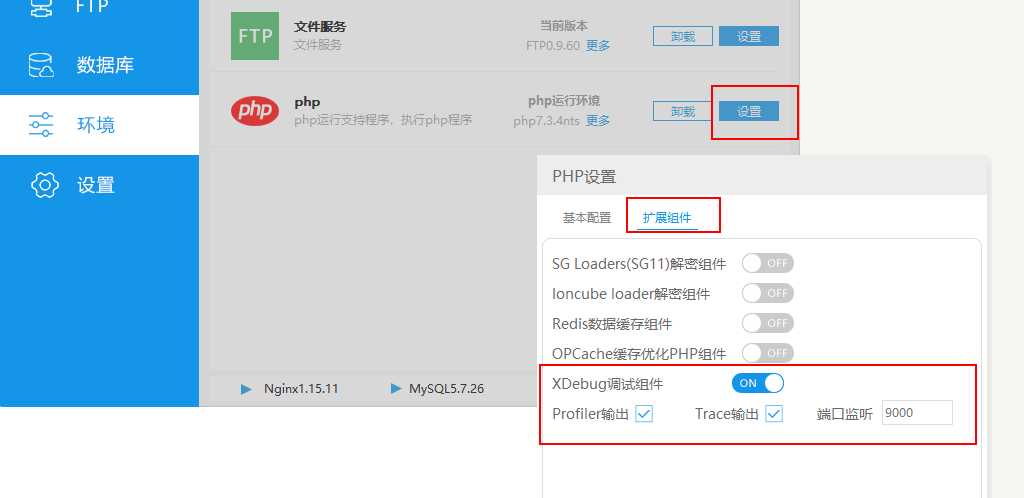
然后到php的目录下修改php.ini配置文件
[Xdebug]
zend_extension=D:/phpstudy/Extensions/php/php7.3.4nts/ext/php_xdebug-2.9.6-7.3-vc15-nts-x86_64.dll
xdebug.collect_params=1
xdebug.collect_return=1
xdebug.auto_trace=On
xdebug.trace_output_dir=D:/phpstudy/Extensions/php_log/php7.3.4nts.xdebug.trace
xdebug.profiler_enable=On
xdebug.profiler_output_dir=D:/phpstudy/Extensions/php_log/php7.3.4nts.xdebug.profiler
xdebug.remote_enable=On
xdebug.remote_autostart = On
xdebug.remote_port=9000
xdebug.remote_handler=dbgp
xdebug.remote_host=localhost
达到上面的效果
设置VSCode的PHP Debug扩展
先设置PHP
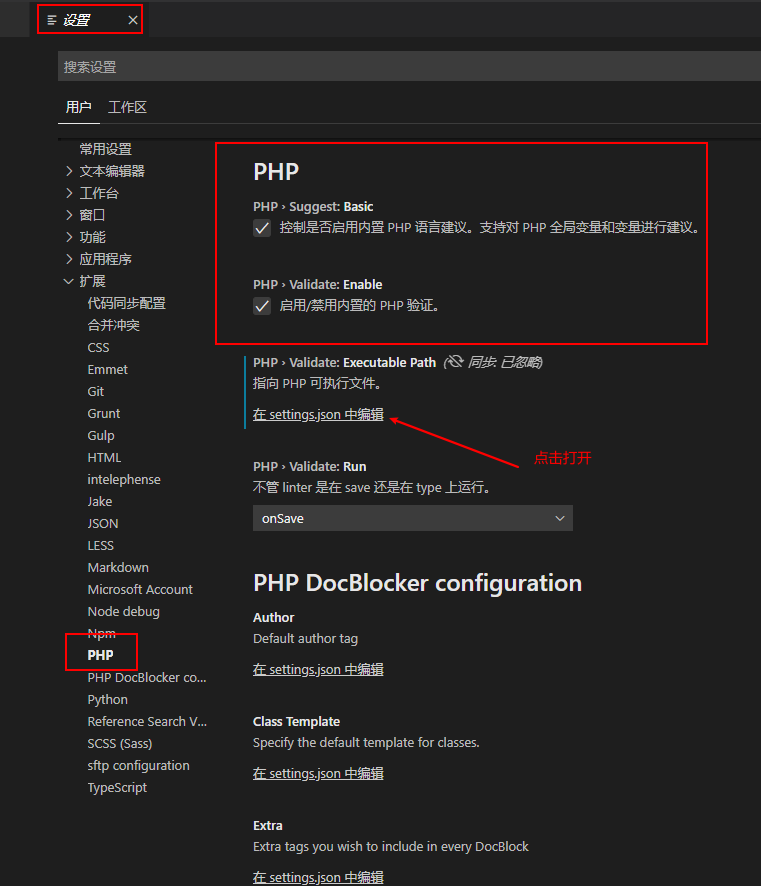
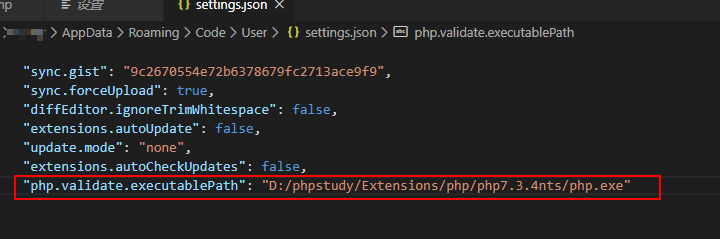
设置PHP Debug扩展
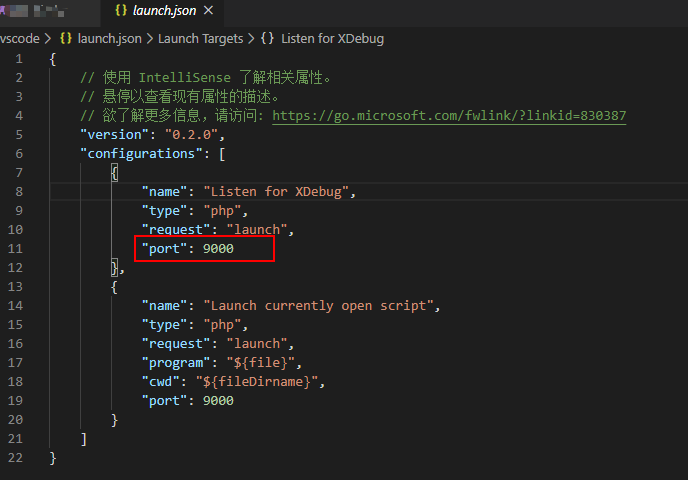
最主要是端口号要与php.ini中一致
最后重启VSCode,设置断点,在浏览器中打开要调试的网站地址即可
评论已关闭